PanDev + ClickUp: Task and Time Tracking in One Place

Every team lead asks the same question: how much real effort does each task actually take? ClickUp tracks work organization; PanDev Metrics tracks engineering activity. Together, they close the gap between "assigned" and "done."
This guide walks you through connecting ClickUp to PanDev via the ClickUp API, syncing tasks and time entries, and using the combined data to make better planning decisions.
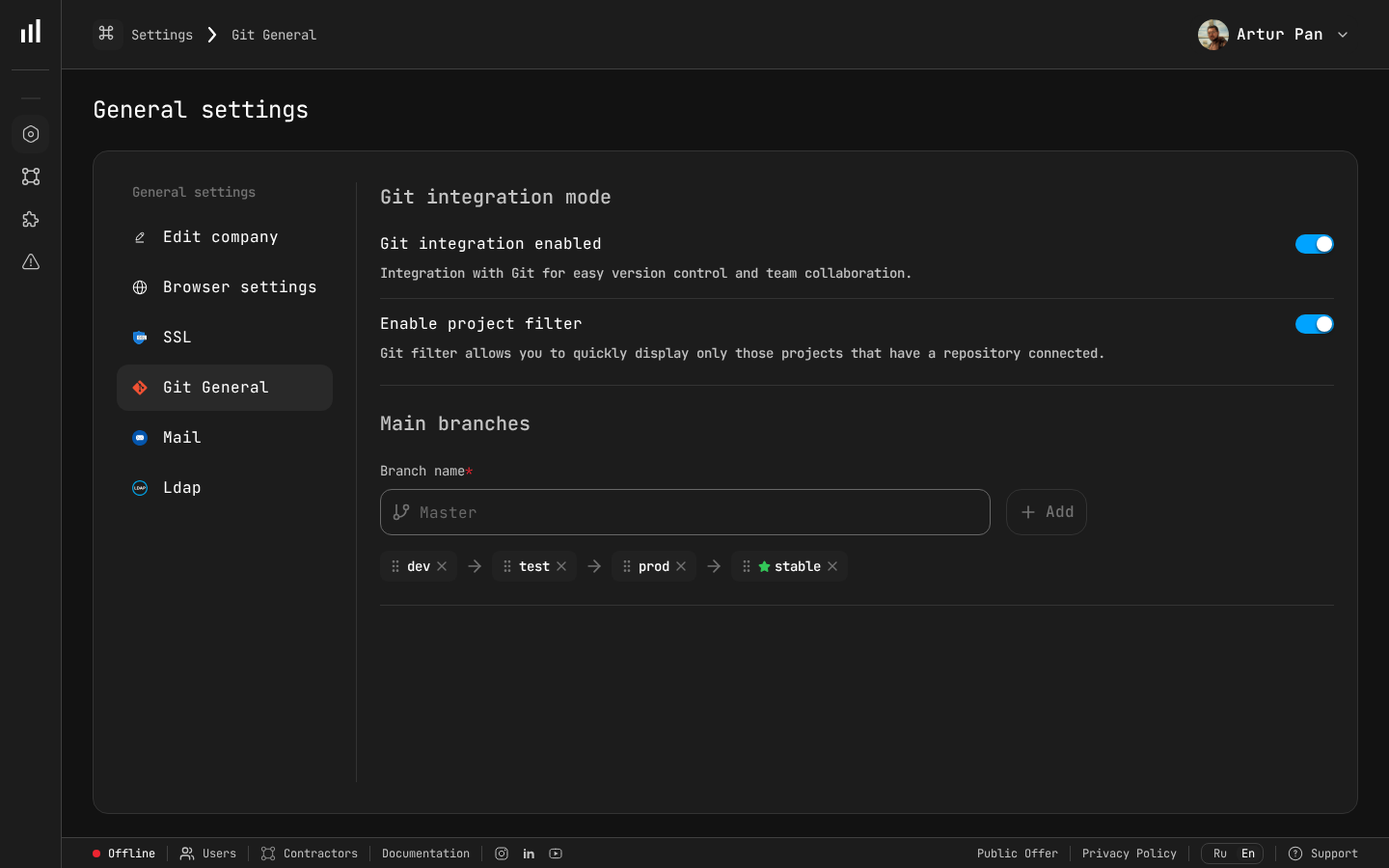
Integration settings panel where ClickUp connection is configured.
What the Integration Gives You
ClickUp tracks tasks, statuses, and time entries. PanDev tracks commits, pull requests, IDE activity, and code reviews. The integration connects the two:
- Tasks linked to commits — see exactly which code changes relate to which ClickUp task
- Time entries vs. IDE time — compare logged time in ClickUp with actual coding sessions
- Sprint analytics — real engineering effort per sprint, not just status transitions
- Cycle time — from task creation to last commit, measured automatically
Prerequisites
| Requirement | Details |
|---|---|
| ClickUp account | Workspace Owner or Admin for the API token |
| PanDev Metrics account | Admin or Manager role |
| Git integration | At least one git provider already connected to PanDev |
Step 1: Generate a ClickUp API Token
PanDev connects to ClickUp using a personal API token or OAuth. The API token approach is simpler for most teams.
- In ClickUp, click your avatar (bottom-left) → Settings
- Go to Apps in the left sidebar
- Under API Token, click Generate
- Copy the token
Your ClickUp API token:
pk_12345678_ABCDEFGHIJKLMNOPQRSTUVWXYZ1234567890
:::caution Token scope The personal API token inherits all permissions of the user who generates it. For production use, consider creating a dedicated service account with read-only access to the workspaces you want to track. :::
Step 2: Add the Connection in PanDev
- In PanDev, go to Settings → Integrations → ClickUp
- Click Add ClickUp Connection
- Paste your API token
- Click Test Connection
PanDev verifies the token and shows your available workspaces:
✅ Connection successful

Available workspaces:
  • Acme Engineering (ID: 12345678)
  • Acme Design (ID: 87654321)
- Select the workspace(s) you want to sync
- Click Save
Step 3: Select Spaces and Folders
After connecting, PanDev shows the workspace hierarchy:
Acme Engineering
├── Backend
│   ├── API Development
│   ├── Infrastructure
│   └── Database
├── Frontend
│   ├── Web App
│   └── Mobile App
└── DevOps
    ├── CI/CD
    └── Monitoring
- Check the boxes next to Spaces or Folders you want to track
- Click Save Selection
You don't need to track everything. Focus on spaces where engineering work happens — skip design, marketing, or HR spaces.
Step 4: Configure Task-to-Code Linking
PanDev links ClickUp tasks to git activity by matching task IDs in commit messages, branch names, and pull requests.
Default Matching Patterns
PanDev looks for ClickUp task IDs in these formats:
Commit message:  "Fix pagination bug CU-abc123def"
Branch name:     "feature/CU-abc123def-pagination-fix"
PR title:        "[CU-abc123def] Fix pagination bug"
PR description:  "Resolves https://app.clickup.com/t/abc123def"
The CU- prefix and the ClickUp URL format are both recognized automatically.
Enabling the ClickUp-Git Integration
For the best linking, also enable ClickUp's native GitHub/GitLab integration. This creates bidirectional links — ClickUp shows the linked PRs, and PanDev shows the linked tasks.
But even without ClickUp's native integration, PanDev can link tasks to code based on the patterns above.
Custom ID Prefix
If your team uses a custom task ID prefix, configure it in PanDev:
Settings → Integrations → ClickUp → Matching Rules

Default prefix: CU-
Custom prefixes: TASK-, T- (add your own)
Step 5: Sync Time Entries
ClickUp has built-in time tracking. PanDev imports these time entries and compares them with actual IDE activity.
- Go to Settings → Integrations → ClickUp → Time Tracking
- Toggle Enable Time Entry Sync
- Configure sync settings:
Sync direction: ClickUp → PanDev (read-only)
Sync frequency: Every 2 hours
Historical import: Last 90 days
Once synced, you can compare:
| Task | ClickUp Logged | IDE Active | Git Active |
|---|---|---|---|
| CU-abc123 – API endpoint | 5h 30m | 3h 45m | 3h 12m |
| CU-def456 – Frontend form | 3h 00m | 4h 20m | 3h 55m |
| CU-ghi789 – Bug fix | 1h 00m | 0h 45m | 0h 38m |
The gap between "logged" and "IDE active" isn't about honesty — it includes meetings, research, planning, and context switching. These are real work hours that don't show up in code but still consume engineering budget.
Step 6: Map ClickUp Users to PanDev Profiles
- Go to Settings → Team Management
- PanDev displays ClickUp users alongside any existing git platform mappings
- Confirm the auto-matches or manually link users
Team Member      GitHub        ClickUp              Status
──────────────────────────────────────────────────────────
Alice Wong       @awong        alice.wong@co.com     ✅ Matched
Bob Park         @bpark        bob.park@co.com       ✅ Matched
Chen Li          @chenli       chen@co.com           ⚠️ Review
Step 7: Explore the Dashboard
Task View
Click any ClickUp task in PanDev to see its engineering timeline:
CU-abc123: Build user profile API endpoint
━━━━━━━━━━━━━━━━━━━━━━━━━━━━━━━━━━━━━━━━━━

ClickUp Status Flow:
  To Do ──(1d)──▸ In Progress ──(2d 4h)──▸ Review ──(6h)──▸ Closed

Engineering Activity:
  Mar 8, 09:15   First commit (alice.wong)          +156 / -23 lines
  Mar 8, 11:42   Second commit (alice.wong)          +89 / -34 lines
  Mar 8, 14:30   PR opened → backend-api#215
  Mar 8, 16:00   Third commit (alice.wong)           +12 / -8 lines
  Mar 9, 10:20   Review started (bob.park)
  Mar 9, 11:15   Review comment: "Consider caching"
  Mar 9, 14:00   Fix commit (alice.wong)             +34 / -5 lines
  Mar 9, 14:45   PR approved (bob.park)
  Mar 9, 15:00   PR merged

ClickUp time logged:  5h 30m
IDE time (PanDev):    3h 45m
Review time:          55m
Total cycle time:     1d 5h 45m (working hours)
Sprint Dashboard
If you use ClickUp Sprints, PanDev creates a sprint-level view:
| Metric | Value |
|---|---|
| Tasks planned | 18 |
| Tasks completed | 15 (83%) |
| Total coding time | 67h across 5 developers |
| Total review time | 18h |
| Avg cycle time per task | 1.8 working days |
| Tasks with no commits | 2 (flagged) |
| Carry-over tasks | 3 |
Time Entry Analysis
The time comparison report helps teams calibrate their tracking habits:
Team Time Tracking Accuracy (last 30 days)
━━━━━━━━━━━━━━━━━━━━━━━━━━━━━━━━━━━━━━━━

Average ClickUp logged time:   5.2h / day
Average IDE active time:       3.8h / day
Average ratio:                 1.37x (ClickUp logs 37% more than IDE)

This is normal — the gap represents:
  • Code research and documentation reading
  • Slack discussions about implementation
  • Local testing without IDE activity
  • Architecture and planning meetings
Automating Task Updates
PanDev can push status updates back to ClickUp based on git activity:
Auto-Status Transitions
Settings → Integrations → ClickUp → Automation

Rules:
  ✅ When first commit is pushed → Move task to "In Progress"
  ✅ When PR is opened → Move task to "In Review"
  ✅ When PR is merged → Move task to "Done"
  ⬜ When PR is closed without merge → Move task back to "In Progress"
These automations reduce manual status updates and keep your ClickUp board accurate without developer effort.
Adding Commit Links to Tasks
PanDev can post a summary comment on linked ClickUp tasks:
Settings → Integrations → ClickUp → Comments

✅ Post a summary when PR is merged

Comment template:
  "🔗 PR merged: {pr_title} ({pr_url})
   Changes: +{lines_added} / -{lines_removed}
   Coding time: {coding_time}
   Review time: {review_time}"
Troubleshooting
| Issue | Solution |
|---|---|
| No tasks syncing | Verify the API token hasn't been revoked. Regenerate if needed |
| Tasks sync but no code links | Ensure developers include ClickUp task IDs (CU-xxxxx) in commit messages or branch names |
| Time entries not importing | Check that time tracking is enabled in the ClickUp workspace settings |
| Wrong user mappings | Go to Team Management and manually correct the associations |
| Automation not triggering | Verify the automation rules match your ClickUp status names exactly (case-sensitive) |
Tips for Getting the Most Out of the Integration
- Standardize branch naming — agree on a format like
feature/CU-xxxxx-short-descriptionso every branch auto-links to a task - Use ClickUp time tracking consistently — the comparison data is only useful if the team actually logs time
- Review the sprint report in retros — use PanDev's sprint analysis as objective data for retrospectives
- Don't optimize for metrics — the goal is better planning, not faster coding. Use the data to remove bottlenecks, not to pressure developers
Next Steps
With ClickUp connected, your task management and engineering data live in one place. Consider:
- Adding more integrations — connect your git provider if you haven't already
- Installing IDE plugins — get coding time data directly from VS Code, IntelliJ, or other editors
- Setting up weekly reports — automated sprint summaries sent to team leads
- Using the AI assistant — ask "What tasks took the longest in the last sprint?" and get instant answers
Unify task tracking and engineering metrics. Connect ClickUp to PanDev Metrics and see the real effort behind every task.