Integrate LDAP / Active Directory with PanDev Metrics on-prem
TL;DR. This guide connects PanDev Metrics on-prem to your LDAP or Active Directory server from the admin UI in about 15 minutes. By the end, employees sign in with their corporate credentials, new users are created on first login, and IDE plugins reuse the same identity. Audience: admin.
Before you begin
- PanDev Metrics on-prem installed and reachable, with the first admin account created — see Licensing and first login
- A reachable LDAP or AD server with TLS on port 636 (LDAPS) — plain
ldap://on 389 also works but is not recommended - A service account in the directory with permission to read user entries — bind DN and password
- The base DN where your users live (for example
ou=Users,dc=example,dc=com) - The search attribute your users sign in with — usually
sAMAccountNamefor Active Directory ormail/uidfor OpenLDAP
LDAP is the only SSO option supported in PanDev Metrics on-prem today. SAML, OIDC, and Google sign-in are not available on-prem. Plan around LDAP for any single sign-on requirement.
Step 1 — Configure LDAP in the admin UI
LDAP is configured entirely from the admin UI — there is nothing to set in .env. Sign in as an administrator and open Settings → Basic settings → Ldap.
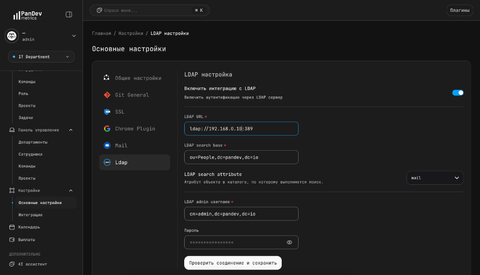
Fill in each field:
| Field | What to enter |
|---|---|
| LDAP URL | ldaps://ldap.example.com:636 (or ldap:// for plain LDAP) |
| LDAP search base | Base DN for the user search (e.g. ou=Users,dc=example,dc=com) |
| LDAP search attribute | Attribute users sign in with (sAMAccountName, mail, uid) |
| LDAP admin username | Bind DN of the read-only service account |
| Password | Service account password |
Select Test connection and save. PanDev Metrics binds with the service account, runs a sample search, and confirms success before persisting the configuration. The change takes effect immediately — no restart needed.
Step 2 — Verify the integration
Sign out of the administrator session and sign in with an LDAP account that exists in the configured search base. The first sign-in creates a user record automatically — the new user appears in Settings → Users with no role assigned.
Roles are not assigned automatically. An administrator must assign a role (Owner, Maintainer, or Viewer) before the new user can use the product.
Troubleshooting
Test connection fails with Cannot connect to LDAP server
The backend container cannot reach the directory. Check three things:
- The URL hostname resolves from the backend container:
docker compose exec pandev-metrics-server getent hosts ldap.example.com. - The port is open from the container:
docker compose exec pandev-metrics-server nc -vz ldap.example.com 636. - The certificate chain on the LDAP server is trusted, or you are using plain
ldap://for the test.
Test connection fails with Invalid credentials (LDAP result code 49)
The bind DN or password is wrong. Confirm the service account DN in your directory tool — the DN must be the full path, not just the username. Test the bind with ldapsearch from another machine to isolate whether the issue is in PanDev or in the directory.
User sign-in fails with user not found in LDAP
The user exists in the directory but is outside the configured LDAP search base, or the LDAP search attribute doesn't match what the user enters. Confirm with a directory query: ldapsearch -b "ou=Users,dc=example,dc=com" "(sAMAccountName=<USER>)".
User can sign in but sees an "access denied" screen
The user record exists in PanDev Metrics but has no role. An administrator must open Settings → Users, locate the user, and assign a role (Owner, Maintainer, or Viewer) before access works.
LDAPS connection fails with a TLS certificate error
The directory's TLS certificate is not trusted by the backend's Java truststore. Either install your CA chain into the backend container, or terminate TLS at a reverse proxy in front of the LDAP server and connect with ldap:// over the internal network.
FAQ
Does PanDev Metrics support SAML or OIDC on-prem?
No. LDAP is the only SSO option in PanDev Metrics on-prem today. SAML and OIDC are not available. If your identity provider does not expose LDAP, you can usually front it with a directory proxy (FreeIPA, Authentik) that does — but that work happens on your side, not in PanDev Metrics.
What about Google sign-in?
Google sign-in is Cloud-only. The on-prem distribution does not include it.
Does PanDev Metrics sync groups from LDAP?
PanDev Metrics authenticates users against LDAP but does not synchronize group membership automatically today. Department and team assignment is done inside PanDev Metrics after the user is created. Group-to-role mapping is on the roadmap.
What happens to a user who is disabled in the directory?
The user can no longer sign in once their LDAP bind fails. Their PanDev Metrics record remains in Settings → Users until an administrator archives it. Archiving keeps the historical metrics attribution intact.
Can I use multiple LDAP servers?
PanDev Metrics on-prem connects to one directory at a time. If you operate multiple forests, use a directory proxy or replicate users into a single search base.
Is the bind password stored encrypted?
Yes. The bind password you enter in the admin UI is stored in the backend's encrypted configuration table, not in plain text.
Next steps
- Manage users and roles — assign roles to users created via LDAP
- Network and ports — confirm LDAP egress from the application host
- Install PanDev Metrics on-prem — deploy the stack before configuring LDAP
Related
- Reference: System requirements
- Concept: On-prem architecture