Vivaldi
Install the PanDev Metrics extension in Vivaldi so that time spent on whitelisted web tools shows up in your dashboards. Takes about 2 minutes.
Before you begin
- Vivaldi installed
- A PanDev Metrics account
- Your PanDev Metrics API token — open the web app, go to Settings → Plugins, click any browser, and copy the value from the Enter your token step. Tokens start with
pandev_
Install
- Open the listing: PanDev Metrics on Chrome Web Store
- Click Add to Chrome, then confirm with Add extension
- Right-click the toolbar to make sure the extension icon is visible
Authenticate
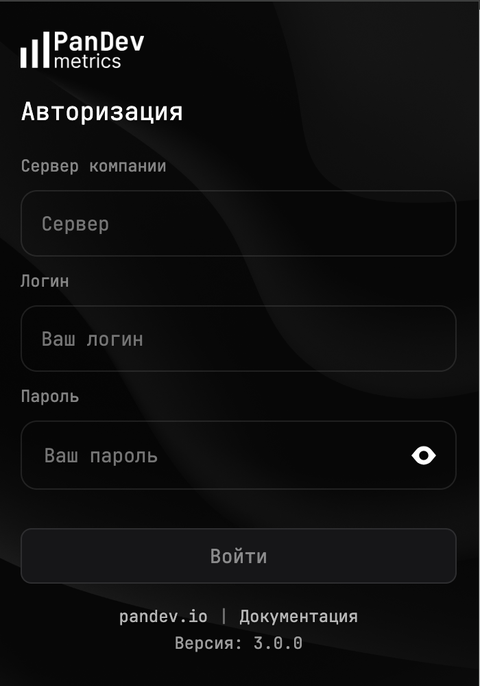
- Click the PanDev Metrics icon
- Paste your token and sign in
The server address and the workspace are inside the token, so there is nothing else to fill in. The same token works for the IDE plugins and the CLI.
Verify
- The extension icon shows a connected state
- Visit a whitelisted domain for at least 30 seconds
- In the PanDev Metrics UI: Settings → Browser Settings lists your machine with a recent event timestamp
Troubleshooting
- No data? Check that the visited domain is on your tenant whitelist and not on your personal blacklist.
- Extension disabled? Open
vivaldi://extensions/and re-enable PanDev Metrics.
Related
- Browser extensions overview — what's tracked, whitelist vs blacklist
- Install in Chrome
- Install in Opera