Install the JetBrains plugin
The PanDev Metrics plugin works across all 10 JetBrains IDEs and is published on JetBrains Marketplace. This guide walks through install, configuration, and verification for both cloud and on-prem.
Supported JetBrains IDEs
- IntelliJ IDEA
- PyCharm
- WebStorm
- PhpStorm
- GoLand
- Rider
- CLion
- RustRover
- RubyMine
- Android Studio
You install the plugin once per IDE. If you switch between, for example, IntelliJ IDEA and GoLand on the same machine, install it in both.
What the plugin does
- Tracks file events (open, edit, close), branch switches, and time spent.
- Reports AI assistant usage when you have JetBrains AI Assistant or Copilot installed.
- Sends everything to PanDev Metrics over HTTPS.
- Captures no source code and no screenshots.
See the overview for the full list of captured and non-captured signals.
Install
- Open your JetBrains IDE.
- Go to Settings → Plugins.
- Select the Marketplace tab.
- Search for PanDev Metrics.
- Click Install and restart the IDE when prompted.
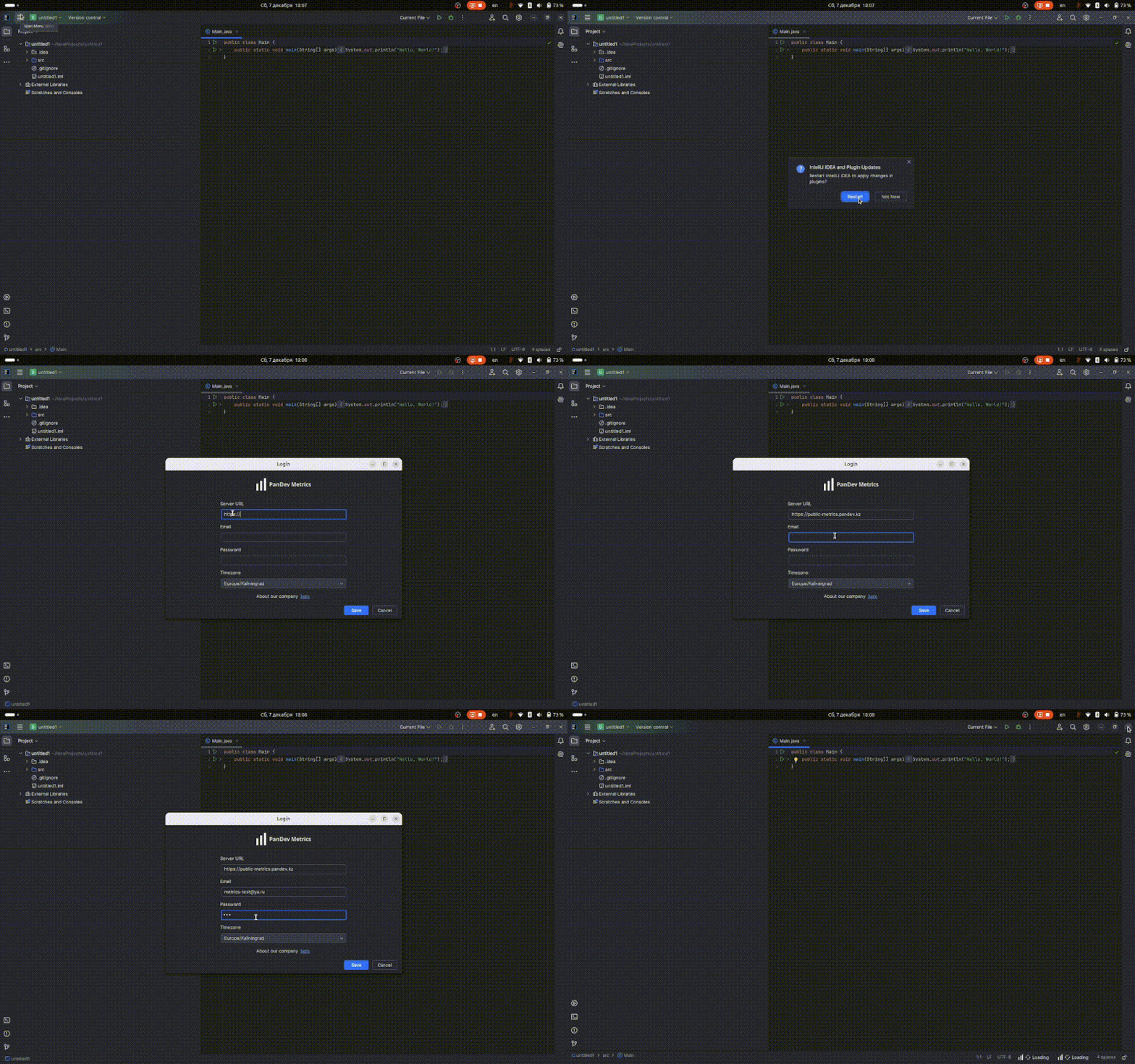
We recommend running the latest plugin version. JetBrains Marketplace will keep it updated automatically.
Configure
After the restart, open Settings → Tools → PanDev Metrics.
Every PanDev Metrics plugin signs in with a single user token. Get it from the web app, paste it into the plugin settings, and you are done: the server address and the workspace are encoded in the token, so there is nothing else to fill in.
- Open the PanDev Metrics web app and go to Settings → Plugins.
- Click your IDE — the install instructions open.
- Copy the value from the Enter your token step. Tokens start with
pandev_. - Paste it into the plugin's token field and save.
The token is issued for the workspace you are currently signed into in the web app. To send metrics to a different workspace, switch to it in the web app first, then copy the token again. On-prem works the same way — take the token from your own instance and the plugin will reach that host.
Two buttons sit next to the token in the same step. Rotate token issues a new one and the old one stops working immediately; Revoke token deletes it without a replacement. Each user has one active token per workspace, so after rotating you have to re-paste it everywhere you use it.
Verify
After saving the settings, the plugin starts sending heartbeats immediately.
- Edit a file in your IDE.
- Wait a couple of minutes.
- Open PanDev Metrics web app → your profile → today.
- You should see activity appear on the timeline.
If nothing arrives within five minutes, see Troubleshooting below.
Troubleshooting
No data on the dashboard. Check that the Server URL has no trailing slash and matches your deployment (cloud vs. on-prem). Try restarting the IDE.
Authentication failed. If you signed in with a token, the most likely cause is that the token was rotated or revoked in the web app — copy the current one from Settings → Plugins and paste it again. Also check the token is complete, with no leading or trailing spaces.
Self-signed certificate on on-prem. On-prem servers may use a self-signed certificate. PanDev Metrics supports disabling SSL validation in the plugin settings for these environments — your administrator will tell you whether to enable that.
I work offline a lot. Nothing extra to configure. The plugin queues events locally and flushes them when you reconnect.
FAQ
Do I need a separate plugin for each JetBrains IDE? The plugin is one and the same on JetBrains Marketplace, but JetBrains IDEs are separate apps, so you install it per IDE.
Does it slow down the IDE? The plugin batches events and uses negligible CPU and memory. We have not seen a measurable impact even on large monorepositories.
What is the minimum plugin version? Any version works. We recommend the latest — new features and fixes only land in newer releases.
Will my source code be uploaded? No. The plugin records file names, activity events, and branches. Source code stays on your machine.