Browser Extension & Domain Whitelist Settings
TL;DR. Manage the organization-wide domain whitelist for PanDev Metrics browser extensions. Only web activities on approved domains are captured in engineering metrics, ensuring complete privacy for personal browsing. Audience: tenant administrator.
Before you begin
- Admin access (Owner or Maintainer) to your PanDev Metrics tenant
- A list of work-related web tools, documentation portals, AI assistants, and internal repositories used across your engineering teams
:::tip Privacy by Default PanDev Metrics browser extensions operate on a strict whitelist-first basis. Any website not included in the organization whitelist is completely ignored by the extension — no events or network traffic leave the browser. :::
Step 1 — Open Browser Settings
- Open your PanDev Metrics workspace.
- In the left sidebar, navigate to Settings (or Organization Settings).
- Select the Browser Settings (or Chrome Plugin) tab.
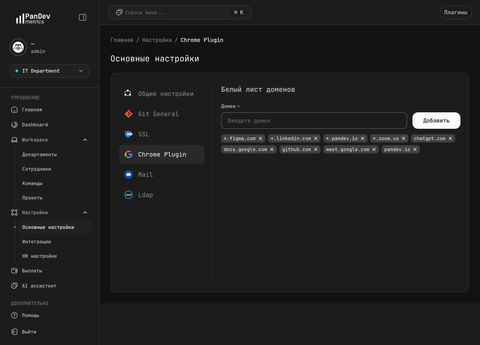
Step 2 — Add Allowed Domains and Patterns
Enter the target domain or pattern in the input field and click Add (or press Enter).
Supported Domain Formats and Regular Expressions
PanDev Metrics supports several matching rules:
| Pattern Type | Syntax Example | Matches | Does Not Match |
|---|---|---|---|
| Exact domain | github.com | github.com | gist.github.com |
| All subdomains | *.atlassian.net | jira.atlassian.net, confluence.atlassian.net | atlassian.com |
| Strict regex | ^https:\/\/gitlab\.internal\/.* | Any URL on gitlab.internal | gitlab.com |
| Flexible regex | ^(https?:\/\/)?(www\.)?notion\.so | notion.so, www.notion.so, http://notion.so | sub.notion.so |
Common default entries:
- Code hosts:
github.com,gitlab.com,bitbucket.org - Task trackers:
*.atlassian.net,*.youtrack.cloud,tracker.yandex.ru - Knowledge bases & AI:
notion.so,chatgpt.com,claude.ai,stackoverflow.com - Internal portals:
*.company.internal,192.168.*
Step 3 — Remove a Domain
To remove a domain from the whitelist:
- Locate the domain tag in the list.
- Click the
×(close) icon on the tag. - The domain is removed immediately and synchronized across all active browser extensions within a few minutes.
How the Two-Layer Tracking Filter Works
- Organization Whitelist (Admin): Defines the boundary of work-related domains.
- User Blacklist (Developer): Individual developers can locally exclude specific sites (e.g. personal email or medical services) in their browser extension popup, even if permitted by the organization whitelist.
Browser Tab Activity
  │
  ▼
Matches Organization Whitelist? ── No ──► Dropped (nothing leaves browser)
  │ Yes
  ▼
Matches User Local Blacklist?   ── Yes ─► Dropped
  │ No
  ▼
Emitted to PanDev Metrics Server (/v1/browser-events)
Data Capture & Privacy Guarantees
| Captured | NOT Captured |
|---|---|
✅ Hostname / Domain (github.com) | ❌ Page body, DOM contents, or HTML |
✅ Active tab title (PR #1234 · my-repo) | ❌ Form inputs, passwords, or search queries |
| ✅ Time spent active (in seconds) | ❌ Screenshots or session replays |
| ✅ User login identifier | ❌ Cookies, local storage, or browsing history |
Troubleshooting
Added domain is not being tracked in metrics
- Confirm the extension is installed and logged in with the matching company workspace.
- Check if the domain requires wildcard matching (e.g. use
*.company.cominstead ofcompany.comif using subdomains). - Confirm the user has not placed the domain on their personal blacklist in the extension popup.
How fast do whitelist changes propagate to extensions?
Active extensions refresh the organization whitelist automatically on browser restart and at periodic background sync intervals (typically within 15 minutes).