Manage departments in PanDev Metrics
TL;DR. A department is the top-level org unit in PanDev Metrics; teams nest inside it. Create a department, add employees, and assign Owner / Maintainer / Viewer + Financier roles scoped to that department. Tenant-level roles still apply globally and combine with department roles. Audience: tenant administrator.
Before you begin
- A PanDev Metrics tenant where you have Owner or Maintainer at the tenant level
- A naming scheme for departments (e.g.
Engineering,Data,QA) and, optionally, an owner picked from existing employees - (Optional) Existing teams that should be migrated into the new department — see Manage teams
Step 1 — Open the Departments page
In the left navigation, expand Organization and choose Departments. PanDev Metrics shows a list of existing departments, their owners, and member counts.
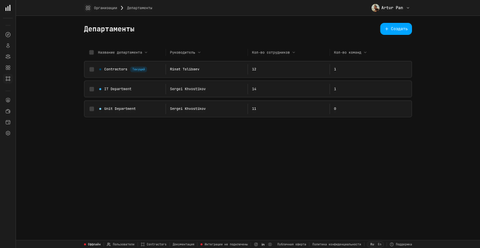
Step 2 — Create a department
Click Create department and fill in:
| Field | Notes |
|---|---|
| Name | Short, unique, e.g. Engineering. Shown in dashboards and reports. |
| Description | (Optional) One sentence about scope or charter. |
Click Create. The new department appears in the list immediately. Assign a Department Owner afterwards from the member roles (see Step 4) — there is no owner field at creation time.
Step 3 — Add employees to the department
Open the department page and use Add employees. Pick people from the tenant directory; they become members of the department.
A few rules to keep in mind:
- An employee can belong to one department at a time. Adding them to a new department removes them from the previous one.
- Tenant role (Owner / Maintainer / Viewer + Financier) is independent of department membership. Adding someone to a department does not change their tenant role.
- Empty departments are fine — you can build the structure first and onboard people later.
Step 4 — Assign department-level roles
Inside the department, each member can have a department-scoped role:
| Department role | Scope |
|---|---|
| Owner | Full control of this department: settings, members, sub-teams. One Owner per department. |
| Maintainer | Manages members and sub-teams of this department. Cannot transfer ownership. |
| Viewer | Reads dashboards and reports for this department only. |
| Financier | Virtual role (UI tag «Финансист»): sees financial reports and salaries for members of this department. Combined with one of the above. |
To assign a role: open the member row inside the department and pick from the role dropdown. Combinations are allowed (e.g. Maintainer + Financier).
Cross-level combinations are normal. A user can be Maintainer at the tenant and Owner of a single department — PanDev Metrics evaluates whichever permission is higher per resource.
Step 5 — Move an employee between departments
Open the target department, click Add employees, and select the person. PanDev Metrics moves them and warns you that they will be removed from the previous department. Their tenant role and historical activity stay intact.
If you need to leave someone without a department temporarily, open the source department, find the row, and use Remove from department. They remain in the tenant directory.
Step 6 — Delete a department
You can delete only an empty department (no member employees and no sub-teams). To delete a department that still has people:
- Move all teams to another department first — see Manage teams.
- Move or remove the remaining employees.
- Open the (now empty) department and click Delete department.
- Confirm. The department is gone; history of its past members is preserved on each employee profile.
PanDev Metrics does not auto-reassign members on department deletion. Plan the move-out first to avoid orphaned employees.
Verify
Confirm the changes are correct:
- The new department appears under Organization → Departments with the expected name and owner.
- Each member's department badge on the Employees page matches the department you assigned.
- Department-scoped dashboards filter correctly to members of this department only.
- Deleting an empty department succeeds without error.
Troubleshooting
"Delete department" is disabled or shows an error
PanDev Metrics blocks deletion of departments that still contain members or sub-teams. Move every team to another department, remove the remaining employees, then try again. The button enables once the department is empty.
A member I added does not see department dashboards
Check two things. First, the person needs a tenant role (Viewer is enough) — invited users without a role see nothing. Second, the department role must be set on the member row inside the department; tenant role alone does not unlock department-scoped boards.
An employee shows up in two departments
This should not happen — PanDev Metrics enforces a single department per employee. If you see it, refresh the page; the most likely cause is a recent move that the UI cache has not picked up. If it persists, contact support.
FAQ
What is the difference between a department and a team?
A department is the larger org unit (for example, Engineering). A team lives inside a department and is the smaller working group (Backend, Frontend, Mobile). One department can have many teams; one team belongs to exactly one department. See Manage teams.
Can a person belong to more than one department?
No. PanDev Metrics enforces one department per employee. If you need broader scope, use a tenant role (Owner or Maintainer) — those see all departments — or assign department-level Viewer in addition where helpful.
What does the Financier tag at the department level expose?
It grants visibility of financial reports and employee salaries for members of that department only. Combine it with a base department role (Viewer is typical) for a clean read-only finance scope per department.
Do department roles override tenant roles?
They combine, not override. PanDev Metrics evaluates permissions per resource and grants whichever role gives access. A tenant Owner sees all departments; a tenant Viewer with department Owner can fully manage that one department but only read elsewhere.
Can I rename a department later?
Yes. Open the department, click Settings, change the name, and save. References inside dashboards and reports update automatically — there is no historical name preserved.
Does deleting a department delete its history?
No. Historical commits, IDE activity, and finished tasks are tied to employees, not to the department. Deleting the department only removes the grouping; per-person history is intact.
Next steps
- Manage teams — create teams inside the department you just built
- Manage employees — invite people and assign roles
- Dashboards and indicators — view department-level metrics
Related
- Reference: Department role matrix
- Concept: Org structure in PanDev Metrics