Manage employees in PanDev Metrics
TL;DR. Use Organization → Employees to invite people in two steps (info, then optional salary), assign tenant-level roles after they register, archive leavers without losing history, and review or update an employee's hourly or monthly salary on the dedicated Salary Rate page. Audience: tenant administrator.
Before you begin
- A PanDev Metrics tenant where you have the Owner or Maintainer role
- An email address for each person you want to invite (registration link is delivered there)
- For salary fields: the rate amount in USD and whether you pay the person hourly or monthly
- (Optional) A target department or team if you plan to assign the new employee right after registration
Inviting an employee does not consume any seat until the person finishes registration. Archived employees do not count either.
Step 1 — Open the Employees page
In the left navigation, expand Organization and open Employees. PanDev Metrics shows two tabs: Active (people who can sign in and produce data) and Archived (history-only, no new activity collected).
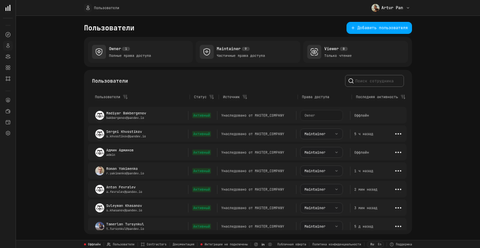
Step 2 — Add an employee (Stage 1: Info)
Click Add employee. The first stage of the modal collects only the basics PanDev Metrics needs to send the invitation:
| Field | Notes |
|---|---|
| The address that will receive the registration link. Must be unique inside the tenant. | |
| First name / Last name | Used everywhere across dashboards. |
| Position | Free-text label, e.g. Backend engineer, Tech lead. |
You cannot pick a role here. PanDev Metrics intentionally creates the employee without a role; you assign one after they register (Step 4 below).
Click Next to continue to the salary stage, or Skip and invite if you do not want to record a salary now.
Step 3 — Set a salary rate (Stage 2, optional)
Stage 2 captures the employee's pay rate so PanDev Metrics can calculate cost-of-feature and payroll-style reports later.
| Field | Notes |
|---|---|
| Amount | Numeric value in USD only. PanDev Metrics does not convert currencies. |
| Salary type | Hourly or Monthly. There is no annual option. |
| Effective date | The date this rate starts. Defaults to today. |
You can leave this stage empty and add the rate later from the Salary Rate page (Step 6).
Step 4 — Assign a role after registration
Once the invitee opens the link and finishes registration, return to Organization → Employees, open their profile, and pick a tenant role:
| Role | Can do |
|---|---|
| Owner | Top-level access: manage members, settings, integrations, billing data, all dashboards. Includes ownership transfer. |
| Maintainer | Administer the tenant: members, integrations, dashboards. Cannot transfer ownership. |
| Viewer | Read-only access to dashboards and reports they are scoped to. |
| Financier | Virtual role (UI tag «Финансист»): access to financial reports and visibility of employee salaries. Granted in parallel with Owner, Maintainer, or Viewer. |
The admin panel at the top of the page shows the counts per group (Owner / Maintainer / Viewer) and highlights the Финансист tag next to people who hold the Financier flag.
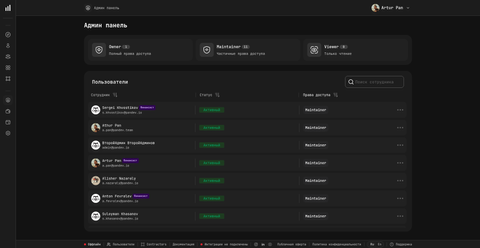
Tenant roles and department roles are independent. The same person can be Maintainer at the tenant level and Owner of a specific department — this is a normal pattern. See Manage departments for department roles.
Step 5 — Archive an employee who leaves
PanDev Metrics does not delete employees — it archives them. Archived people keep their historical data (commits, IDE activity, finished tasks) but stop producing new data and free up their seat.
- Open the employee profile from the Active tab.
- Click the action menu and choose Archive. The UI label may read "Delete" — this is the same archive action, not a hard delete.
- Confirm. The employee moves to the Archived tab.
To bring someone back, open the Archived tab, find the profile, and click Unarchive.
Step 6 — Update a salary rate over time
Open the employee profile and click Salary rate to open the dedicated page at /dashboard/employees/salary-rate/<id>. PanDev Metrics keeps a full history of rate changes:
- Add a new entry with an effective date when the rate changes (raise, role change, contract renewal).
- Older entries stay in the history so cost reports for past months use the rate that was actually in force.
- Switch between Hourly and Monthly with a new entry — do not edit old ones.
Step 7 — Transfer the Owner role (rare)
If the current Owner of the tenant leaves the company, transfer ownership before archiving them:
- Open the leaving owner's profile.
- Click Transfer owner and pick the receiving Maintainer or Owner from the list.
- Confirm. The Owner attribute moves; the leaving person becomes a regular Maintainer and can then be archived in Step 5.
Owner transfer is supported via the UI. The legal account-owner record changes — make sure the receiving person is fully onboarded before you confirm.
Verify
Confirm everything is in place:
- The new employee appears on the Active tab with the position you set.
- After they register, their tenant role is visible next to the name (Owner, Maintainer, Viewer — and the Финансист tag if Financier is granted).
- The Salary Rate page shows at least one rate entry with the correct amount, type, and effective date.
- Archived people are listed only under Archived and no longer produce new IDE or git events.
Troubleshooting
The "Add employee" form does not let me pick a role
This is expected. PanDev Metrics does not assign roles at invite time — the V1 invite API does not carry a role. Send the invitation first; once the employee finishes registration, open their profile and assign the role from the dropdown.
I see a "Delete" button on the employee profile — does it actually delete?
No. Despite the label, the action archives the employee. All historical data (commits, IDE activity, salary history) is preserved. The employee moves to the Archived tab and can be restored at any time with Unarchive.
The salary amount shows in a currency other than USD
PanDev Metrics stores and displays all salaries in USD only. There is no currency conversion. If you entered a value in a different currency, edit the rate entry and re-enter the equivalent USD amount.
I cannot find an "Annual" salary type
Annual is not supported. The only two salary types are Hourly and Monthly. Convert annual figures to monthly (divide by 12) or hourly (divide by your working-hours model) before entering.
Financier tag-holder cannot see salaries
The Financier flag must be assigned on top of an existing tenant role; it is not a replacement. Open the profile and check that the user has either Owner, Maintainer, or Viewer and the Финансист tag enabled. Reload the financial report afterwards.
FAQ
Do archived employees consume a license seat?
No. Archived employees keep their history but free up the seat immediately. You can archive and unarchive without contacting support, so seat planning stays under your control.
Can I assign a role at the moment I invite someone?
No. PanDev Metrics creates new employees without a role on purpose — role assignment is a separate action you perform after the person registers. This avoids granting access to an account that may never be activated.
What is the Financier tag for, and how does it differ from Owner?
Financier is the only flag that exposes financial reports together with employee salaries. Owner manages settings and members but does not automatically reveal salary amounts. Many teams give an HR or accounting lead the Viewer + Financier combination.
Can the same person have different roles in different departments?
Yes. Tenant roles (Owner / Maintainer / Viewer + Financier) are independent from department roles (Owner / Maintainer / Viewer + Financier). A Maintainer at tenant level can simultaneously be Owner of one department and Viewer of another.
How do I record a salary raise?
Open the employee's Salary Rate page and add a new entry with the new amount, type, and an effective date in the future or today. Do not edit historical entries — past entries are used to calculate past cost-of-feature numbers correctly.
Is there a way to bulk-invite employees from CSV?
Not yet. Invites are issued one at a time through the Add employee modal. For large rollouts, consider connecting LDAP — see LDAP integration.
Why don't I see the Bonuses field on the Salary Rate page?
The bonuses module is not currently active. PanDev Metrics tracks only the base hourly or monthly rate; bonus handling will return in a future release.
Next steps
- Manage departments — group employees by org unit and assign department-level roles
- Manage teams — create teams inside a department and pick team leads
- Salary and cost reports — use the rates you just set to see cost-of-feature
Related
- Reference: Tenant role matrix
- Concept: How PanDev Metrics calculates feature cost