LDAP & Active Directory Settings
TL;DR. Connect PanDev Metrics to your corporate LDAP or Active Directory in about 10 minutes. Employees sign in using their corporate domain credentials, user accounts are provisioned automatically on first login, and IDE/browser plugins share the same corporate identity. Audience: tenant administrator.
Before you begin
- Admin access (Owner or Maintainer) to your PanDev Metrics tenant
- Hostname and port of your directory server (
389for plain LDAP,636for LDAPS) - Service account with read permissions for the user directory (Bind DN and password)
- Base DN where your employee accounts reside (e.g.
ou=Users,dc=example,dc=com) - (For LDAPS with custom CA) Root or intermediate certificate in
.pemor.crtformat
:::warning SSO Protocol Support LDAP / LDAPS is the primary directory SSO supported for On-Premise installations. SAML, OIDC, and Google sign-in are not used on-prem. :::
Step 1 — Open the LDAP Settings page
- Open your PanDev Metrics workspace as an administrator.
- In the left navigation menu, open Settings (or Organization Settings).
- Select the LDAP (or LDAP/AD) tab.
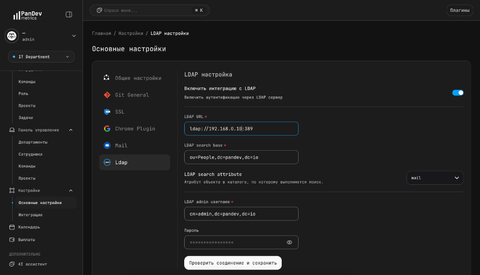
Step 2 — Configure Directory Parameters
- Enable the Enable LDAP integration toggle.
- Choose your directory type: LDAP (port 389) or LDAPS (port 636, recommended).
- Complete the configuration fields:
| Field | Example | Description |
|---|---|---|
| LDAP URL | ldaps://ldap.example.com:636 | Full URL including protocol and port |
| Search Base | ou=Employees,dc=example,dc=com | Starting DN for searching user entries |
| Search Filter | (&(objectCategory=Person)(sAMAccountName=*)) | Optional filter to narrow eligible accounts |
| Search Attribute | sAMAccountName (AD) or mail / uid (OpenLDAP) | Attribute employees use as their login |
| Certificate | corporate-ca.crt (LDAPS only) | Optional CA certificate file for self-signed LDAPS |
| Admin Username | cn=svc_pandev,ou=Services,dc=example,dc=com | Full Bind DN of the read-only service account |
| Admin Password | •••••••••••• | Password of the service account |
Step 3 — Test the Connection
- Click Test connection.
- PanDev Metrics binds with the directory server using the service account and verifies query access against the configured Search Base.
- If the test succeeds, the Save button becomes active.
Step 4 — Save Configuration
Click Save. The integration is immediately active.
What happens after enabling LDAP:
- Employees can now log into the web interface, IDE extensions, and browser plugins using their domain credentials.
- When an employee signs in for the first time, a user record is automatically created in PanDev Metrics.
- Administrators can then assign the appropriate role (Owner, Maintainer, or Viewer) under Settings → Users or assign them to departments and teams.
Troubleshooting
Test connection fails with "Cannot connect to LDAP server"
Check network connectivity between the PanDev Metrics server and the directory host:
- Verify DNS resolution for the directory hostname.
- Check firewall rules for port 636 (LDAPS) or 389 (LDAP).
Authentication fails with "Invalid credentials" (LDAP result code 49)
Confirm the Admin Username format. It must be the full Bind DN (e.g. cn=pandev_svc,ou=ServiceAccounts,dc=company,dc=com) rather than a simple username, and the password must match.
User cannot sign in: "User not found in directory"
Ensure the user resides inside the configured Search Base (sub-tree) and that their sign-in identifier matches the configured Search Attribute (sAMAccountName, mail, or uid).
LDAPS connection fails with TLS certificate error
Upload your internal Root/Intermediate CA certificate using the Certificate upload button in the LDAPS settings section.