Mail Server Settings
TL;DR. Connect your corporate mail server (SMTP / IMAP / POP3) to PanDev Metrics in about 5 minutes. Mail integration is required for sending employee registration invitations, password resets, and system notifications. Audience: tenant administrator.
Before you begin
- Admin access (Owner or Maintainer) to your PanDev Metrics tenant
- Outgoing SMTP server address and port (e.g.
smtp.office365.com:587orsmtp.gmail.com:465) - Service account credentials (email address and password or App Password)
- Network connectivity from the PanDev Metrics server to the mail server
:::tip Cloud vs On-Premise In Cloud workspaces, system emails are handled automatically. On-Premise instances must configure a corporate mail server to enable invitations and password recovery. :::
Step 1 — Open the Mail Settings page
- Open your PanDev Metrics workspace as an administrator.
- In the left navigation menu, open Settings (or Organization Settings).
- Select the Mail tab.
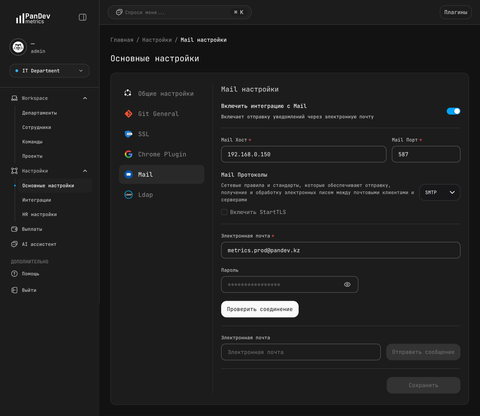
Step 2 — Configure Connection Parameters
Enable the Enable Mail integration toggle and fill in the required fields:
| Field | Example | Description |
|---|---|---|
| Mail Host | smtp.gmail.com / mail.company.local | Hostname or IP address of your mail server |
| Mail Port | 587 (STARTTLS) or 465 (SSL/TLS) | Port used for outgoing mail transmission |
| Mail Protocol | SMTP | Protocol standard (SMTP, IMAP, or POP3) |
| Enable StartTLS | Checked | Enables opportunistic TLS encryption for secure message transfer |
| Email (Username) | noreply@company.com | Sender account address used to authenticate with the server |
| Password | •••••••••••• | Mail account password or application-specific token |
Step 3 — Test the Connection
- Click Test connection to verify connectivity with the mail server.
- PanDev Metrics will perform a handshake with the SMTP host using the provided credentials.
- Once the connection is verified, enter a recipient email address in the Send test message field and click Send.
- Confirm that the test email arrives in your inbox.
Step 4 — Save Configuration
Click Save to persist the configuration. When active, a green «Connected» badge appears at the top of the settings page.
Troubleshooting
Authentication failed (Invalid credentials / 535 5.7.8)
Check that:
- The username and password are correct.
- For services like Gmail or Microsoft 365, two-factor authentication requires generating an App Password rather than using your primary account password.
- SMTP authentication is enabled for the account in your mail provider's admin console.
Connection timeout or connection refused
Check firewall and security group rules between the PanDev Metrics host and your SMTP server. Ensure outbound traffic on port 587 or 465 is allowed.
StartTLS negotiation failed
If your server requires direct SSL/TLS encryption (commonly on port 465), disable the StartTLS checkbox. If using port 587 (submission), keep StartTLS enabled.
FAQ
What features depend on the Mail integration?
- Email invitations for new team members.
- Account password recovery and security alerts.
- Scheduled digest and metric reports sent to team leads.
How do I disconnect or disable Mail integration?
Click the Disconnect button on the settings page or turn off the Enable Mail integration switch and save changes.