Manage teams in PanDev Metrics
TL;DR. Teams are working groups that live inside a department in PanDev Metrics. Create a team, drag employees into it, pick a team lead, and link the team to one or more projects (repositories). Each employee belongs to one team at a time. Audience: tenant administrator.
Before you begin
- A PanDev Metrics tenant where you have Owner or Maintainer at the tenant level, or Owner / Maintainer of the department where the team will live
- The parent department already exists — see Manage departments
- Employees you want to add are already invited and registered — see Manage employees
- (Optional) The list of git repositories you plan to associate with the team
Step 1 — Open the Teams page
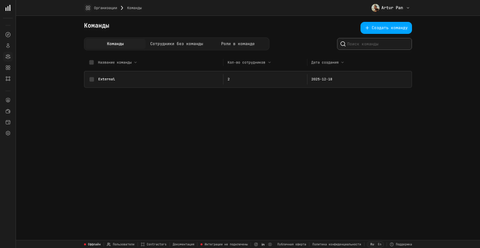
In the left navigation, expand Organization and open Teams. Switch to the department you want to work with — the teams list is always scoped to one department at a time.
Step 2 — Create a team
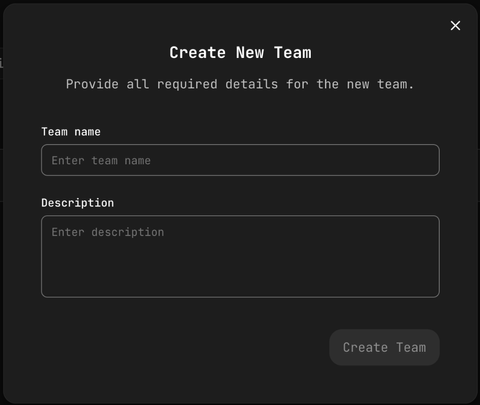
Click Create team and fill in:
| Field | Notes |
|---|---|
| Team name | Short, unique within the department, e.g. Backend, Mobile. |
| Description | (Optional) One sentence about scope. |
Click Create team. The team is created inside the current department automatically.
A team cannot exist outside a department. If you delete its parent department, you must move the team first — PanDev Metrics will block the deletion otherwise.
Step 3 — Add members from the "Employees without a team" pool
PanDev Metrics keeps every employee who is not yet on a team in a dedicated pool, so you do not have to remember who is unassigned.
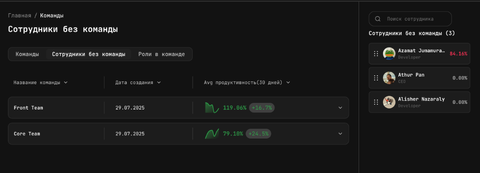
- Open Organization → Teams → Employees without a team.
- The right-hand list shows everyone in the department without a team.
- Drag and drop an employee onto the target team card.
- In the dialog that opens, pick the person's role in the team (e.g.
QA,Tech lead). - Click Confirm.
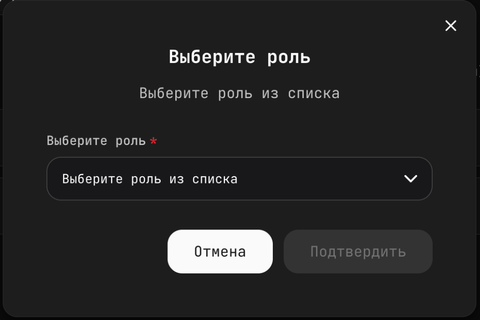
Team roles are labels describing what the person does in the team. They do not grant or remove access — that is handled by tenant and department roles. See Manage employees and Manage departments.
Step 4 — Assign a team lead
A team lead is the person responsible for the team. To assign one:
- Open the team page.
- Find the member row and choose Make team lead from the action menu, or pick the team-lead label when adding the member.
- PanDev Metrics highlights the lead on the team page and uses this person as the default contact for team-scoped notifications.
Only one team lead is recommended per team. To change leads, set the new person first; the previous lead falls back to a regular member.
Step 5 — Link the team to projects
Teams are linked to projects (repositories) so PanDev Metrics knows which work belongs to which team.
- Open the team page and switch to the Projects tab.
- Click Add project and pick repositories from the list of connected git integrations.
- Click Save.
After the next sync cycle, dashboards filtered to this team show commits, PRs, and IDE activity from the selected repositories. Repositories can belong to several teams when needed.
Step 6 — Move an employee to another team
Open the source team page, find the member, and use Move to team. Pick the target team and confirm. The employee leaves the source team immediately; their team role can be set anew in the destination.
To remove someone from a team without picking a new one, choose Remove from team — they go back to the Employees without a team pool of the same department.
Step 7 — Delete a team
- Open Organization → Teams for the parent department.
- Tick the team checkbox.
- In the bulk-action bar at the bottom, click Delete.
- Confirm.
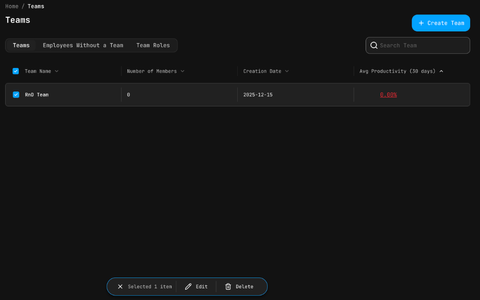
Members of the deleted team are not removed from the tenant — they fall back into the "Employees without a team" pool of the same department. Reassign them to another team if needed.
Verify
Confirm everything is in place:
- The team appears under the correct department in Organization → Teams.
- Each member shows the expected team role.
- The team lead is highlighted on the team page.
- Dashboards filtered to the team show data from the linked repositories.
- Deleting a team returns its members to the "Employees without a team" list, not out of the tenant.
Troubleshooting
I cannot find an employee in the "Employees without a team" list
The list shows only employees of the current department who are not yet on any team. Check that the person is added to this department (see Manage departments) and that they are not already a member of another team — switch to the team they are on and remove them first.
Drag-and-drop does not work in my browser
The drag-and-drop assignment uses standard HTML5 events. If it does not respond, try a Chromium-based browser (Chrome, Edge, Arc), disable browser extensions that block drag events, or use the Add member button on the team page as a fallback.
A team shows zero data even though commits exist
You probably did not link projects to the team yet. Open the team page, go to Projects, and add the repositories that this team owns. Data appears after the next sync cycle (within minutes).
I cannot delete the parent department because it still has teams
PanDev Metrics blocks department deletion while teams exist underneath. Move every team to another department first, then delete the original. Members of moved teams travel with their team.
FAQ
How is a team different from a department?
A department is the top-level org unit (e.g. Engineering). A team is a smaller working group nested inside a department (e.g. Backend, Mobile). One employee belongs to one team; one team belongs to exactly one department. Use departments for org-wide rollups, teams for product- or stack-focused views.
Can an employee be on more than one team?
No. PanDev Metrics enforces one team per employee. If you need cross-team visibility, give the person a higher tenant or department role (Maintainer or Owner), which already sees everything in scope.
Do team roles control access to anything?
No. Team roles are labels for the person's function (QA, Team lead, and similar). Access is controlled by tenant roles (Owner / Maintainer / Viewer + Financier) and department-level roles (Owner / Maintainer / Viewer + Financier).
Can one repository belong to several teams?
Yes. Open the team page, go to Projects, and add the repository. The same repository can be linked to multiple teams when several teams collaborate on it. Per-repo activity counts once but appears in every team's dashboard that lists it.
What happens when I delete a team?
The team disappears from the department. Its members fall back to the "Employees without a team" pool of the same department and can be reassigned. Historical commits and tasks linked to the team's projects are preserved on the employee profiles.
Can I rename a team?
Yes. Open the team, click Settings, change the name, and save. Dashboards update on the next render — no historical name is kept.
Is there an API to create teams in bulk?
PanDev Metrics does not expose a public API. Internal endpoints power the UI, but they are not part of a supported contract. Use the UI flow for now.
Next steps
- Manage departments — create or restructure the parent department
- Manage employees — invite and onboard the people you put on teams
- Connect a git integration — make sure the repositories you link to a team are available
Related
- Reference: Team roles vs tenant roles
- Concept: Org structure in PanDev Metrics