Connect Jira to PanDev Metrics
TL;DR. Connect Jira Cloud, Server, or Data Center to PanDev Metrics in about 10 minutes. You will create a dedicated jira account with administrator rights, generate a token, paste it into Settings → Integrations → Jira, and let PanDev Metrics register its webhooks automatically. Audience: admin.
Before you begin
- PanDev Metrics is up and running (cloud workspace or on-prem instance)
- A jira account with administrator rights and access to the target projects — required because PanDev Metrics creates webhooks on connect
- Jira Cloud URL (
https://your-domain.atlassian.net) or Jira Server / Data Center base URL reachable from the PanDev Metrics backend - PanDev Metrics backend is reachable from jira (Cloud → public URL, on-prem → routable host) so webhooks can deliver events to
/v1/jira-worklogand/v1/issue/** - An admin role in PanDev Metrics for the target tenant
:::tip Service account
Use a dedicated jira account named, for example, pandev-metrics-bot. Personal accounts work, but a service account keeps automatic activity (worklog updates, webhook calls) separate from human history and survives staff turnover.
:::
Step 1 — Prepare the jira account
PanDev Metrics needs administrator-level access in jira because it registers webhooks during connect and reads worklogs across all selected projects.
For Jira Cloud: invite the service user to the Atlassian organization with the Org admin or site admin role, then add it to the projects you want to track.
For Jira Server / Data Center: in Administration → User management, create the user and add it to a group that holds Jira Administrators global permission.
Grant Browse Projects, View Development Tools, and Work On Issues project permissions on every project that will be synced.
Step 2 — Generate the jira token
PanDev Metrics authenticates as the service user via a token. The token type depends on the jira flavor.
Jira Cloud — API token
- Sign in to Atlassian with the service account
- Open id.atlassian.com → Security → API tokens
- Select Create API token
- Enter a label, for example
pandev-metrics - Select Create and copy the token immediately — Atlassian shows it only once
Jira Server / Data Center — Personal Access Token
- Sign in to jira with the service account
- Open Profile → Personal Access Tokens
- Select Create token
- Enter a label and an expiration period (one year is a good default)
- Select Create and copy the token
Step 3 — Connect jira in PanDev Metrics
PanDev Metrics stores credentials inside the tenant and registers webhooks against the jira instance during this step.
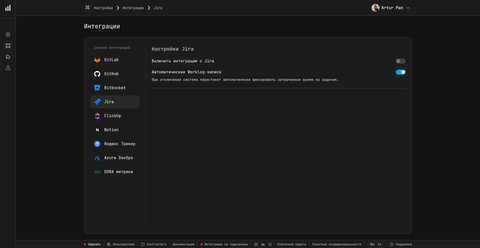
- Open PanDev Metrics and go to Settings → Integrations → Jira
- Choose the Basic tab (email + API token — typical for Jira Cloud) or the Token tab (personal access token only — typical for Jira Server / Data Center)
- Fill in the connection form:
- Jira URL —
https://your-domain.atlassian.netfor Cloud or the full base URL for Server / Data Center - Jira username — service account email (Basic tab only)
- Jira access token — value from Step 2
- Jira URL —
- Select Test connection — PanDev Metrics validates credentials, reads the project list, and lists the projects available to the service user
- Pick the projects to monitor and select Save
Once activated, PanDev Metrics registers webhooks on /v1/jira-worklog (worklog events) and /v1/issue/** (issue lifecycle events). No further setup in jira is needed.
Step 4 — Choose what to sync
Fine-tune what flows into PanDev Metrics so the dashboards stay focused.
- Projects — list of project keys to ingest
- Issue filter (JQL) — optional, for example
type != Epic AND statusCategory != Doneto skip parent items - Worklog mode —
automaticwrites IDE-based estimates back to jira;read-onlyingests existing worklogs without writing anything - History backfill — set how many days of historical issues and worklogs to pull (default 90 days)
Save the form. The first backfill runs in the background and usually finishes within 10-30 minutes for medium projects.
Verify
Open Settings → Integrations → Jira — the tile should show a green Connected badge and the last sync timestamp.
Then open any dashboard with a task-tracker widget (for example DORA → Lead time for changes) and confirm that:
- Recent jira issues appear next to commits
- Task statuses match jira (To Do / In Progress / Done)
- IDE time is attributed to issues whose key appears in branch names or commit messages (for example
PDM-123)
To force a fresh poll, select Sync now on the integration tile.
What gets collected
PanDev Metrics pulls a limited, well-defined slice of jira data — no source code, no comments bodies by default.
| Source | Direction | What is stored |
|---|---|---|
| Issue fields | Pull + webhook | Key, summary, type, status, status category, priority, assignee, reporter, project, sprint, labels, components, story points, due date |
| Status transitions | Webhook /v1/issue/** | From, to, timestamp, actor — used for cycle time and time-in-status |
| Worklogs | Webhook /v1/jira-worklog + pull | Author, started, time spent, issue key — used to enrich IDE-based time tracking |
| Sprints | Pull | Sprint id, name, state, start / end dates |
| Users | Pull | Account id, display name, email — matched against PanDev Metrics employees |
Code, attachments, and comment bodies are not stored.
Troubleshooting
Test connection fails with 401 Unauthorized
The token is wrong, expired, or belongs to a different account. Regenerate the token (Step 2), make sure you paste it without surrounding whitespace, and confirm the email field matches the account that created the Cloud API token.
Connection works, but no issues appear after 30 minutes
The service user probably lacks Browse Projects on the selected projects. Open jira admin, check project permissions, then return to Settings → Integrations → Jira and select Sync now.
Webhook events do not arrive (Jira Server / Data Center)
The jira host cannot reach the PanDev Metrics backend on the /v1/jira-worklog and /v1/issue/** endpoints. From the jira host, run curl -v https://<pandev-host>/v1/jira-worklog — it must return HTTP 4xx, not a connection error. Open firewall rules between jira and PanDev Metrics on port 443.
Duplicated worklogs in jira after enabling automatic worklog
This happens if both jira tempo (or a similar plugin) and PanDev Metrics write the same intervals. Switch PanDev Metrics worklog mode to read-only, or disable the conflicting plugin for the integration user.
FAQ
Cloud vs Server / Data Center — which one should I pick?
PanDev Metrics supports all three flavors equally. Choose based on where your jira already lives — there is no feature gap between connectors. Cloud uses email plus API token, Server / Data Center uses Personal Access Token, and webhooks register the same way on both sides.
What are the minimum jira permissions?
PanDev Metrics requires a jira administrator account with access to the target projects. Administrator rights are needed because PanDev Metrics registers webhooks during connect; lower roles cannot create webhooks. Inside projects the user needs Browse Projects, View Development Tools, and Work On Issues.
How does worklog sync work?
PanDev Metrics ingests existing jira worklogs and, if automatic mode is on, writes back time captured by IDE plugins. Time is attributed to the issue whose key appears in branch names, commit messages, or the IDE context. Worklog events arrive in near real-time via the /v1/jira-worklog webhook.
Can I link commits and PRs to jira issues?
Yes. Add the issue key (for example PDM-123) to the branch name, commit message, or pull request title. The git integration extracts the key, PanDev Metrics joins it with jira data, and the issue appears next to the commit on dashboards. This is how PanDev Metrics builds the cost-of-feature view.
Will the integration write to jira?
Only if worklog mode is set to automatic. In read-only mode PanDev Metrics performs no writes — it only reads issues, worklogs, and webhook events. Most teams start in read-only mode and switch on automatic worklog after they trust the IDE-based time tracking.
Do I need one webhook per project?
No. PanDev Metrics registers a single set of webhooks at the jira instance level. Adding or removing projects in Settings → Integrations → Jira does not change the webhooks — only the project filter on the PanDev Metrics side.
What happens if the token expires?
The integration tile turns red and Test connection returns 401. Generate a new token (Step 2), paste it into the integration form, and select Save. Existing data is preserved; only new events are paused while the token is invalid.
Can multiple jira instances be connected to the same tenant?
Yes. Add each instance as a separate integration in Settings → Integrations → Jira → Add instance. PanDev Metrics keeps project keys unique per instance, so identical keys in different jiras do not collide.
Next steps
- Install the JetBrains plugin — capture IDE time per jira issue
- Install the VS Code plugin — same for VS Code, Cursor, and Windsurf
- Connect GitHub — join commits and pull requests with jira issues
Related
- Yandex Tracker integration — alternative task tracker
- Notion as a task tracker — lightweight option
- GitLab integration — full git ↔ jira ↔ IDE picture